Markdown to PDF: The 5 Reliable Ways (and When to Use Each)
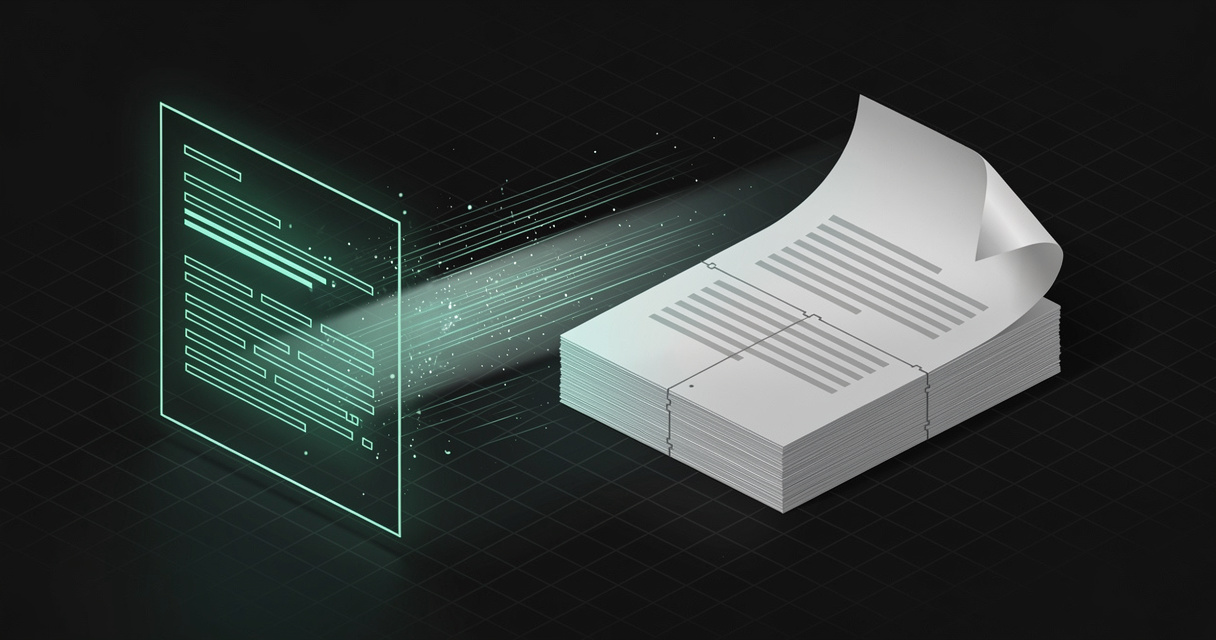
"How do I turn this Markdown file into a PDF?" is one of those questions that looks trivial and turns out to have a dozen answers, half of which quietly disappoint you. The headings come out wrong, a code block bleeds off the page, your YAML frontmatter shows up as a block of literal text at the top, or the fonts are not the ones you picked. The reason there are so many answers — and so many small disappointments — is that converting Markdown to PDF is really two problems stacked on top of each other: turning Markdown into a laid-out document, and turning that layout into paginated pages.
This guide covers the five reliable ways to convert Markdown to PDF, the honest pros and cons of each, and the three things that actually go wrong (page breaks, fonts, and frontmatter). By the end you will know exactly which method to reach for.
TL;DR — There are five reliable ways to convert Markdown to PDF: your editor or browser's built-in export, Pandoc, a command-line tool, print-to-PDF, and a conversion API. Under the hood almost all of them use one of just two engines — a Chromium browser engine or a LaTeX engine — and that choice is what determines your control over page breaks and fonts. For a quick, good-looking PDF of your notes, MDflow has a one-click print-ready export built in; for typeset, print-quality output, use Pandoc.
The two engines behind every Markdown-to-PDF tool
Before the five methods, the one idea that makes all of them make sense: nearly every Markdown-to-PDF tool is a wrapper around one of two rendering engines.
- The browser (Chromium) print engine. It converts Markdown to HTML, then prints that HTML to PDF using the same engine your web browser uses. This powers browser print-to-PDF, headless Chrome, Puppeteer and Playwright, the md-to-pdf CLI, the VS Code Markdown PDF extension, Typora, Obsidian, MDflow, and most cloud conversion APIs. You get full CSS — web fonts, colors, flexbox, grid — and pagination is controlled with CSS print rules.
- The LaTeX (TeX) typesetting engine. Pandoc routes Markdown through LaTeX, the typesetting system built for books and academic papers. You get superb typography and true page control, at the cost of a heavy toolchain.
Once you know which engine a tool uses, its strengths and quirks are predictable. A browser-engine tool styles like a web page and breaks pages like a web page. A LaTeX tool typesets like a book. Keep that split in mind and the rest of this guide falls into place.
One engine to avoid entirely: wkhtmltopdf. It was the default for years, but it was archived on GitHub in January 2023 and is now unmaintained abandonware, shipping a 2012-era WebKit engine with a critical unpatched vulnerability (CVE-2022-35583, a server-side request forgery rated CVSS 9.8). Many old tutorials still point to it — don't use it for anything new.
The 5 reliable ways to convert Markdown to PDF
Here is the whole landscape at a glance, then each method in detail.
| Method | Engine | Setup | Control | Best for |
|---|---|---|---|---|
| Editor / browser export | Chromium | None | Low–medium | A quick PDF of one document |
| Pandoc | LaTeX | Heavy | Highest | Print-quality, repeatable output |
| Command-line tool | Chromium | npm + Node | Medium | Automation and CI pipelines |
| Print to PDF | Chromium | None | Low | The universal fallback |
| Conversion API | Chromium | API key | Medium | Server-side, at scale |
1. Editor or browser built-in export
The fastest way to convert Markdown to PDF is the Export to PDF button in the app you already write in. Typora, VS Code with the Markdown PDF extension, Obsidian, StackEdit, Dillinger, and MDflow all ship a one-click export. Almost all of them drive a Chromium or Electron print engine behind the scenes, so what you see in the preview is what lands in the PDF.
- Pros: zero or near-zero setup; true WYSIWYG against the app's preview; respects the app's theme and CSS; more than good enough for the everyday "I just need a PDF of this note."
- Cons: pagination control is limited to whatever CSS the app exposes; frontmatter handling varies wildly (VS Code's extension renders it, some web tools strip it, others print it literally); fonts are whatever the app's stylesheet provides; the same file looks different in different apps. The VS Code extension also needs a Chrome, Edge, or Chromium install (it will download one on first use).
Reach for this when you want a clean PDF of a single document and you do not need to control exactly where the pages break.
2. Pandoc — the power tool
Pandoc is the most capable Markdown-to-PDF converter there is, and the right choice when output quality matters. It is the universal document converter, and for PDF it routes your Markdown through LaTeX:
pandoc document.md -o document.pdf --pdf-engine=xelatex
Because LaTeX is a real typesetting system, you get real control. You can set margins, fonts, and a table of contents from a YAML metadata block that Pandoc reads as document metadata rather than printing:
---
title: Quarterly Report
author: Jane Doe
date: 2026-06-23
geometry: margin=1in
mainfont: "Inter"
toc: true
---
- Pros: the best typography and pagination of any option; templates for repeatable house styles; numbered sections, a generated table of contents (
--toc), and citations; it consumes your YAML frontmatter as metadata so nothing leaks into the body; reproducible from the command line and in CI. - Cons: you must install a TeX distribution (TeX Live or MacTeX runs to several gigabytes); LaTeX error messages are famously cryptic; and the default
pdflatexengine cannot use system fonts or render much Unicode — that is why the command above sets--pdf-engine=xelatex, which (along withlualatex) lets you setmainfont:to any installed font via thefontspecpackage.
Reach for Pandoc when you are producing a polished, print-quality document — a report, a paper, a book — that you will regenerate repeatedly and want to look consistently professional.
3. Command-line tools
For automated and batch conversion, a lightweight CLI gives you the browser engine without the manual click. The most popular is md-to-pdf, which converts Markdown with Marked and prints it with Puppeteer (headless Chrome):
npx md-to-pdf document.md
Front-matter doubles as per-file configuration — page size, margins, header and footer templates, a custom stylesheet — and you force a page break by placing an element with the class page-break (it applies page-break-after: always). Other options in this family include mdpdf; avoid the older markdown-pdf, which rode the long-dead PhantomJS, and any wrapper built on wkhtmltopdf.
- Pros: scriptable and CI-friendly; lighter mental model than Pandoc; watch mode for live rebuilds; front-matter-as-config keeps styling per document; great for converting a whole folder in one command.
- Cons: needs Node and downloads a Chromium (hundreds of megabytes on first run); typographic control is CSS-bound, not LaTeX-grade; package quality varies, so check that the tool is actively maintained.
Reach for a CLI when conversion needs to happen automatically — in a repo, a build step, or a scheduled job — and you want the browser engine's easy CSS styling.
4. Print to PDF — the universal fallback
Every Markdown file can become a PDF with no software installed: render it anywhere, then print to PDF. Open the Markdown in a GitHub rendered view, any editor's preview pane, or a browser tab, then press Cmd/Ctrl+P and choose Save as PDF as the destination.
- Pros: works literally everywhere; exact WYSIWYG of whatever is on screen; zero toolchain; the print dialog gives you margins, scale, and a background-graphics toggle for free.
- Cons: it is manual; pages only break where the page's CSS sets
page-break-*; the browser adds its own header and footer (URL, date, page number) unless you switch them off; and raw YAML frontmatter prints as literal text unless the renderer hides it. One subtlety worth knowing: interactive Chrome "Print to PDF" and the headlesschrome --print-to-pdfdo not produce identical output — headless respects the page size you set in CSS; the GUI does not.
This is the method MDflow's built-in export uses for you — but with a print stylesheet already tuned for paper, which is the difference between a usable document and a messy one. More on that below.
5. A conversion API or service
To generate PDFs server-side or at scale, offload rendering to a hosted or self-hosted conversion API. CloudConvert, PDFShift, and API2PDF all convert Markdown or HTML to PDF with Chrome; Gotenberg is a popular self-hosted, Docker-based option. You POST the content and get a PDF back.
- Pros: no local toolchain; scales to thousands of documents; consistent output across every machine; ideal for backends that generate invoices, reports, or exports on demand.
- Cons: with a hosted service, your content leaves your machine — a real concern for sensitive documents, which is the case for self-hosting Gotenberg; per-document cost and rate limits; and because most are Chromium under the hood, the same page-break and font caveats apply.
Reach for an API when generation must happen programmatically, at volume, or in an environment where you cannot install a renderer.
The three things that actually go wrong
Across all five methods, the same three details cause almost every bad PDF. Here is how each engine handles them.
Page breaks
With a browser engine, insert an explicit break with inline HTML in your Markdown — every Markdown renderer passes HTML through:
<div style="page-break-after: always;"></div>
In a stylesheet you can also start every chapter on a fresh page with h1 { page-break-before: always; }, and keep a table or figure from splitting with page-break-inside: avoid;. Use the legacy page-break-* properties: print engines honor them more reliably than the modern break-* aliases (VS Code's plugin, for instance, respects page-break-after but not break-after). For maximum compatibility, set both.
With Pandoc and LaTeX, a page break is a raw \newpage (or \pagebreak) dropped straight into the Markdown.
Fonts
The browser engine wins on convenience here: any system font or @font-face web font works through CSS, so brand fonts are easy. The LaTeX engine is the opposite — the default pdflatex is limited to TeX fonts and chokes on system fonts and much Unicode. Switch to --pdf-engine=xelatex (or lualatex) and set mainfont: in your YAML to use any installed OpenType font.
Frontmatter
This is the one that surprises people. A --- YAML block at the top of your file is metadata, but only some tools know that. Pandoc consumes it — title, author, and date become the document's title block and nothing leaks into the body. Browser-engine tools are inconsistent: the VS Code extension renders frontmatter into the output, several web converters strip it, and a plain print-to-PDF of a raw preview shows the --- block as literal text. If your PDF has a stray title: ... block at the top, that is why — strip the frontmatter first, or choose a tool that parses it.
Which method should you use?
Match the method to the job:
- One PDF of one note, right now → your editor's Export to PDF, or print-to-PDF.
- A polished, print-quality document you will regenerate → Pandoc with
--pdf-engine=xelatex. - Batch or CI conversion in a repo → a CLI like
md-to-pdf. - Server-side generation at scale → a conversion API, or self-hosted Gotenberg.
- Privacy-sensitive content → keep it local: editor export, print-to-PDF, Pandoc, or a CLI — not a third-party API.
- You just want it to look like your notes → whatever already renders them nicely, then save as PDF.
How MDflow fits
MDflow is a markdown workspace in the browser, and it covers the most common case on this list directly: it has a built-in, print-ready PDF export — method 4 done for you. Every document has an Export to PDF action (so does every document inside a shared collection) that renders the formatted Markdown through a stylesheet already tuned for paper: sensible page margins, a clean light theme, and proper styling for headings, tables, code blocks, blockquotes, and images. Then it hands off to your browser's Save as PDF. It works in the editor and in the read-only reader for anything shared with you — no frontmatter leaks, nothing to install. (See Can I export Markdown to PDF? in the FAQ.)
Just as important is what MDflow does not lock up. Because it is markdown-native — your document is plain .md, not a proprietary format — you are never boxed in. Download the original .md at any time, or fetch the raw .md twin of any shared document over the HTTP API, and pipe it straight into Pandoc or a CLI when you need LaTeX-grade typesetting. The portable source is the on-ramp to every other method in this guide. An AI agent or a CI job can do the same: pull the Markdown through the API or MCP server and run Pandoc on the other side.
To be honest about the boundary: MDflow's export is a clean print flow, not a typesetting engine. It will not generate running headers, automatic page numbers, or a table of contents the way Pandoc does. For a quick, good-looking PDF of your notes, it is one click; for a 200-page book, reach for Pandoc — using the .md MDflow hands you.
Where we are headed is direction, not a dated commitment, but the shape of it: richer export themes and page-setup options, finer control over page breaks, exporting a whole folder or collection as a single PDF, and server-side export through the API so an agent can request a rendered PDF without driving a browser. The throughline is the one this guide is built on — keep the Markdown portable, and every path to PDF stays open.
The bottom line
There is no single best way to convert Markdown to PDF — there is a best way for your job. For a quick document, use an editor's export or print-to-PDF. For print-quality and repeatability, use Pandoc. For automation, use a CLI; for scale, use an API. The one constant is the engine split underneath: a browser engine for easy CSS styling, a LaTeX engine for serious typesetting. Know which one your tool uses, mind page breaks, fonts, and frontmatter, and your PDFs will stop surprising you.
If your Markdown already lives in MDflow, the everyday case is one click — and the source is always yours to take anywhere.
Start free · Connect an AI agent · Read the API docs
Frequently asked questions
What is the easiest way to convert Markdown to PDF?
Open the Markdown in an editor or browser preview and use its built-in Export to PDF, or just press Cmd/Ctrl+P and choose Save as PDF. Both need nothing installed and give you the rendered document exactly as you see it on screen. Tools like MDflow, Typora, VS Code, and Obsidian all ship a one-click PDF export that drives a Chromium print engine under the hood.
What is the best Markdown-to-PDF method for print-quality output?
Pandoc with a LaTeX engine produces the highest-quality, fully paginated PDFs. Run pandoc doc.md -o doc.pdf and add --pdf-engine=xelatex so you can use system fonts. Pandoc gives you real page control, margins, templates, a table of contents, and it reads your YAML frontmatter as document metadata instead of printing it. The trade-off is installing a multi-gigabyte TeX distribution.
How do I add a page break when converting Markdown to PDF?
For browser- and Chromium-based tools, embed an HTML element with a page-break style in your Markdown, for example <div style="page-break-after: always;"></div>. Use the legacy page-break-before/after properties because print engines honor them more reliably than the modern break-before/after aliases. For Pandoc and LaTeX, insert a raw \newpage in the Markdown.
Why does my YAML frontmatter appear in the exported PDF?
Because most browser-engine converters do not treat the --- block as metadata the way Pandoc does. Some render it as a table, some strip it, and a plain print-to-PDF of a raw preview prints it as literal text. Either remove the frontmatter before exporting or use a tool that parses it (Pandoc consumes it; MDflow renders the body without leaking it).
Can MDflow convert Markdown to PDF?
Yes. MDflow has a built-in print-ready PDF export in both the editor and the read-only reader for shared documents. It renders the formatted Markdown through a stylesheet tuned for paper — sensible margins and clean styling for headings, tables, and code — then hands off to your browser's Save as PDF. You can also download the original .md at any time and pipe it into Pandoc or a CLI for heavier typesetting.
Further reading
- Pandoc — User's Guide (PDF output and
--pdf-engine) - simonhaenisch — md-to-pdf on GitHub
- MDN — CSS paged media and
break-before - Doppio — wkhtmltopdf is now abandonware
- MDflow — Markdown for AI agents · API documentation · Markdown editor comparisons · FAQ